

If your PlayStation 5 gameplay appears normally in OBS Studio but your friends’ voices are missing, the problem is often the console’s audio routing rather than the capture card itself. When you connect a headset to the DualSense controller, the PS5 can redirect game and voice-chat audio away from HDMI. Your capture card continues receiving video, but the audio you hear through your headset may never reach OBS.
Before buying another microphone or capture card, check where the PS5 is sending its sound. A short recording with your headset disconnected, followed by a test with it connected, can reveal whether the missing audio originates at the console or inside OBS.
The distinction matters because there are several different problems that can sound identical in a finished video: missing game audio, missing party chat, and missing microphone commentary. Each follows a different signal path, and adjusting the wrong OBS setting may not fix any of them.
Why PS5 Party Chat Disappears From Capture-Card Recordings
A typical PS5 streaming arrangement uses an HDMI cable to send gameplay to a capture card. The card passes the picture to a television or monitor while sending a captured feed to the computer running OBS.
Without a headset connected, the game sound commonly travels through HDMI alongside the picture.
Connecting a wired headset to the controller can change that arrangement. The PS5 may send the audio through the controller’s headphone connection instead.
The result is a split between two paths:
- HDMI path: PS5 → capture card → OBS
- Headset path: PS5 → DualSense controller → headphones
A capture card cannot record audio that never reaches its selected input.
Sony’s PlayStation voice-chat troubleshooting instructions identify the PS5’s Output Device and Output to Headphones settings as important controls when voice-chat audio behaves unexpectedly.
Before changing OBS, identify which of these symptoms describes your recording:
| What happens | Most useful first check |
|---|---|
| Game video works, but both game sound and party chat disappear after plugging in headphones | PS5 output routing between HDMI and headset |
| Game sound records, but friends’ voices are missing | Party-chat selection, headset output, and analog capture routing |
| Friends are audible, but your own voice is missing | Whether OBS captures a separate microphone |
| Audio is present in OBS but absent from a saved Twitch VOD | OBS recording or VOD-track assignments |
These symptoms provide clues, not definitive diagnoses. A source can be audible in your headphones without being included in a recording.
Check the PS5 Audio Settings First
Start with a short recording before purchasing an audio adapter.
Disconnect the wired headset from the controller, play a game with recognizable sound effects, and inspect the capture-card audio meter in OBS.
Record approximately 20–30 seconds, then play the file back.
If the sound works without the headset but disappears after you reconnect it, the output route is the likely starting point.
Next, open the PS5 settings:
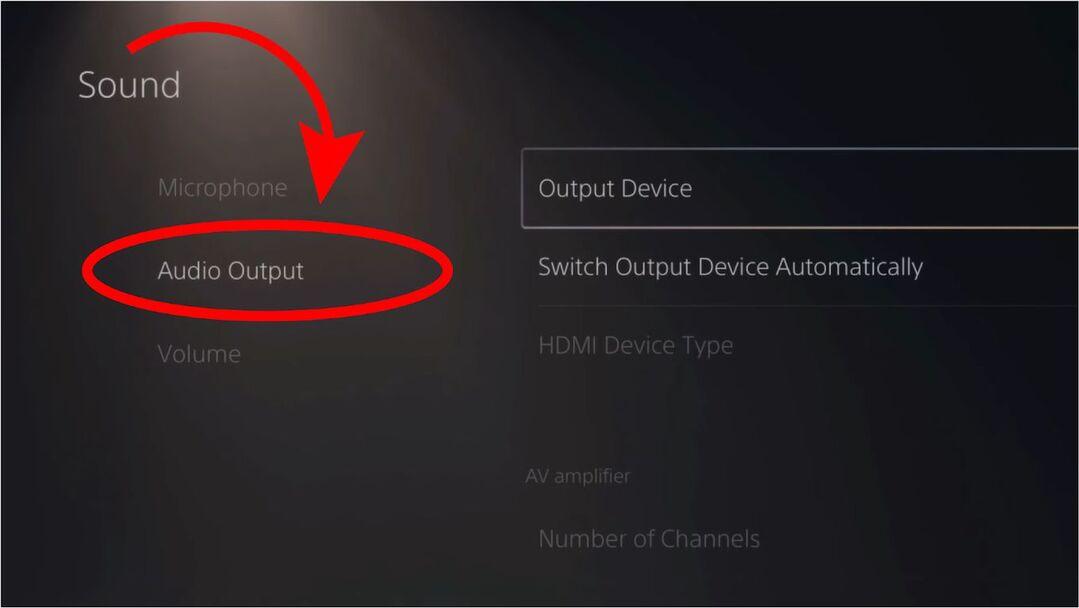
- Go to Settings > Sound > Audio Output.
- Check the selected Output Device.
- Examine Output to Headphones to see which sounds are being sent to the headset.
- Reconnect your headset and confirm that game sound and party chat are audible.
- Repeat the short OBS recording.
Also check whether you are actually listening to PlayStation party chat or the game’s separate voice-chat system.
On PS5, press the PS button, open Game Base, and inspect the active voice chat. You can switch between party and game voice chat when supported. A muted party, an incorrect voice-chat selection, or an extreme chat-balance adjustment can cause apparent audio problems even when the recording hardware is configured correctly.
Do not assume that changing the headphone output setting will automatically send every party participant’s voice over HDMI. Verify the result using a real test.
Capture PS5 Party Chat With a Compatible Analog Audio Connection
If you use a wired headset plugged into the controller, an analog audio adapter can deliver the sound you hear to the recording computer.
One established example is Elgato Chat Link Pro.
Elgato’s Chat Link Pro connection instructions describe a three-way arrangement that sends headset audio to both the player and a capture input.
The connection uses three components:
- A four-pole 3.5 mm connection to the DualSense controller.
- A headphone connection for the player’s compatible wired headset.
- An analog audio connection to the capture card or computer’s Line-In input.
This arrangement can capture the incoming game and voice-chat sound routed through the controller.
However, the capture device must actually support the input being used.
Some external capture cards have a dedicated analog audio port. Other devices, including some internal PCIe models, do not. In those cases, a computer’s compatible Line-In may be needed.
A standard computer microphone input should not automatically be treated as equivalent to Line-In. It may have different electrical characteristics, resulting in distortion or inappropriate input levels.
If you use a USB-only or wireless headset that does not route its audio through the controller’s 3.5 mm connection, a Chat Link-style cable is not a direct solution. Check your headset’s supported wired modes before purchasing an adapter.
Switch OBS From HDMI Audio to the Correct Input
Connecting an analog adapter is only part of the setup.
OBS or the capture-card software must listen to the input carrying the sound.
On supported Elgato devices, the manufacturer provides an option to switch the capture audio input from HDMI to Analog. The exact interface depends on the capture-card model and software version.
If the cable connects to the computer’s Line-In instead, configure OBS to capture that separate audio device.
For an OBS setup using a capture card:
- Open the scene containing your PS5 Video Capture Device source.
- Open the source’s Properties and inspect its audio options.
- Select the relevant analog input through the capture device’s supported controls, or add the computer’s Line-In as an Audio Input Capture source.
- Check the OBS Audio Mixer while game audio and party chat are playing.
- Record a short sample and listen to the finished file.
OBS’s Video Capture Device documentation explains the available audio-output and custom-device controls for supported systems.
Do not capture the same analog sound twice using overlapping global and scene audio sources. Duplicate capture paths can produce echo or unusually loud, hollow audio.
Also distinguish audio capture from monitoring. A meter can move because OBS receives sound even when you cannot hear it through the computer’s speakers.
Changing monitoring settings does not create audio that is absent from the capture input.
Chat Link Pro Does Not Normally Record Your Own Headset Microphone
One of the most confusing parts of this setup is that your friends can hear you through the PlayStation party while your own voice is missing from the finished OBS recording.
That behavior can be normal.
The headset’s microphone signal travels back to the console so your teammates can hear you. The analog adapter copies the audio coming from the controller, but it generally does not send your microphone’s outgoing signal to the capture card.
Elgato confirms this limitation in its Chat Link Pro audio troubleshooting guidance. For recording your own voice, the company recommends a separate microphone connected to the recording computer.
That does not necessarily mean buying expensive equipment. A functioning microphone already connected to your computer may be sufficient.
In OBS, add the appropriate microphone as its own audio source and check that both it and the capture-card audio are included in the intended recording track.
Some hardware supports microphone monitoring, which can return a voice signal to the listener’s headphones. That should not be assumed to provide a dependable replacement for directly capturing commentary.
Keeping the console conversation and computer recording inputs separate also makes it easier to adjust your microphone volume without changing your teammates’ chat levels.
Check the Recording, Not Just the OBS Preview
After correcting the audio routing, test the complete setup.
Have a friend join a private party with their permission, then make a short local recording containing three distinguishable sounds: a game sound effect, the friend’s voice, and your own commentary.
Play the saved file and check each one separately.
If OBS receives all three sources but your Twitch replay is missing one, the next investigation should focus on recording or VOD-track assignments rather than the controller cable.
Rave-Tech’s Twitch VOD audio-track troubleshooting guide explains why a livestream can carry sound successfully while its saved replay uses a different audio mix.
The same general lesson applies to local OBS recordings. An audio meter responding does not guarantee that the source was assigned to the track your video player or editor is using.
Check track assignments before your important recording, because OBS cannot reconstruct sound that was never captured.
Keep Party-Chat Privacy in Mind
Technical capture capability and permission to publish are different issues.
PlayStation includes voice-chat settings that let players control aspects of how their voices are used in other players’ broadcasts and video clips. These settings should not be treated as proof that an external capture-card recording is automatically authorized.
Ask participants before recording or publicly streaming private conversations. Be particularly cautious when a recording contains personal information, underage players, or people who do not know their conversations are being saved.
A creator should be able to stop capturing a private conversation without disrupting the entire gameplay recording.
The Right Fix Depends on Where the Audio Disappears
For PS5 streamers, the first diagnostic step should be checking the audio path, not replacing hardware.
If unplugging the headset restores the sound in OBS, investigate controller audio routing. If you need to capture the audio sent to a wired headset, verify that your capture hardware supports a suitable analog input. If teammates are audible but your own voice is not, add a separate recording microphone.
Finally, confirm the result in an actual saved video rather than relying on the OBS preview alone.
A properly configured PS5 recording setup should let you hear your teammates, preserve their permitted chat audio, and record your own commentary without confusing these separate signals.