

Ever had your broadcast vanish like Thanos snapped half the universe? You’re in the middle of a raid, making jokes like a pro, then poof – it’s gone. I’ve seen more VTuber avatars crash than Elon’s Twitter changes, and it’s a mess.
Every frozen frame is a battle. OBS settings fight with GPU drivers. Encoder presets are like hieroglyphics. SSDs work hard like Peloton instructors during a 4K render. We’re not just fixing glitches – we’re doing heart surgery on your digital stage.
This isn’t about quick fixes. We’re figuring out why your hardware struggles and why software updates can mess things up. From Twitch’s backstage to Discord’s audio problems, I’m your tech wizard.
Ready to fix those streaming problems? Let’s go deeper than James Cameron’s submarine. Your audience (and your sanity) will appreciate it.
Diagnosing Common Issues (Lag, Audio Drift, Crashes)
Streaming glitches are like jump scares in a bad movie. They’re scary but predictable. Let’s look at three big problems: lag, audio drift, and crashes.
Why Your Stream Dies Mid-Sentence
Your CPU isn’t lazy; it’s just busy. It’s like doing math while juggling chainsaws. Pro tip: If Task Manager looks crazy, you’re in trouble.
CPU Load: The Silent Killer
Streaming needs a lot of power. It’s like solving a Rubik’s Cube blindfolded. Here’s what’s slowing you down:
- Discord’s “Hardware Acceleration”: This feature can cause problems. Turn it off unless you like slow streams.
- Chrome Tabs: Open tabs use a lot of RAM. Your tabs for VTuber lore are hurting your stream.
- Encoder Settings: Streaming at high quality uses a lot of power. It’s like trying to park a big truck in a small space.
| Application | CPU Impact | Quick Fix |
|---|---|---|
| OBS Studio | High (15-30%) | Switch to NVENC encoder |
| Discord | Moderate (8-12%) | Disable overlay & hardware acceleration |
| Chrome | Variable (5-25%) | Use Edge for streaming (yes, really) |
| Game Client | Extreme (40-70%) | Cap FPS below refresh rate |
MSI Afterburner is more than just for showing off. It helps you keep an eye on your system. Watch for CPU spikes and remember, high-quality streaming doesn’t make low-quality video better. Focus on what’s important.
Internet Problems & Solutions
Your “gigabit” connection is like an Among Us imposter. It promises a lot but doesn’t deliver. Why does your stream stutter, even when speed tests show you’re fast?
Wi-Fi vs Ethernet: The Eternal Struggle
Wireless streaming is like ordering a Big Mac during lunch rush. You’ll lose half your fries (packet loss). Here’s the truth:
| Wi-Fi | Ethernet | |
|---|---|---|
| Stability | Moodier than Twitter trends | Steadier than a grandma’s knitting rhythm |
| Latency | Adds 15-100ms (enough to miss headshots) | Consistent 1-2ms (pro gamer approved) |
| Best For | Casual cat video streaming | Anything involving viewers or paychecks |
Stuck with Wi-Fi? Try TwitchTest like it’s your job. Quality scores matter – below 80 means your router might be ignoring you.
Bitrate Math for Dummies
Streaming bitrates are like your bank account. Too much and it crashes. The key formula:
- Upload Speed > (Bitrate × 1.2)
- 720p needs 3,500 kbps? Your upload must be ≥ 4,200 kbps
- 1080p? Better have 6,000 kbps breathing room
Forget about “theoretical maximums.” Real-world streaming is tough. Bufferbloat, ISP throttling, and neighbors torrenting can ruin your day. Use TCP Optimizer or Cloudflare WARP to fight back.
PC Resource Management
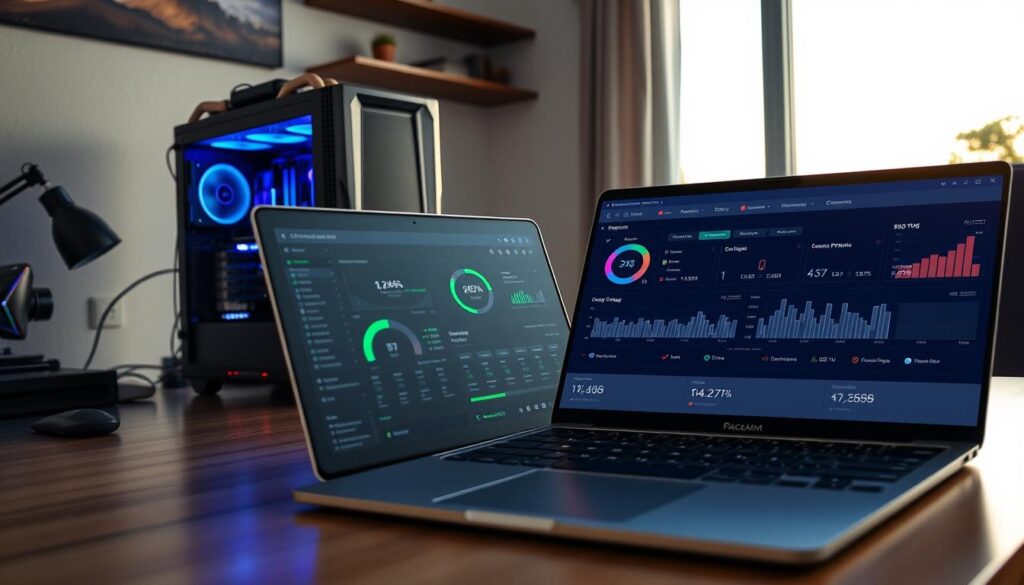
Managing your PC’s resources is like teaching a cat to juggle. It’s possible but needs precise skill. When FPS drops or your stream stutters, it’s time to optimize. Turn your machine into a productivity ninja, not a digital packrat.
Task Manager Jiu-Jitsu
Windows Task Manager is more than just closing tabs. For streamers, it’s a battle where apps go to die. Here’s how to take down resource-hungry apps:
- Right-click your taskbar and select “Task Manager” (or CTRL+SHIFT+ESC if you’re fancy)
- Sort by Memory or CPU to spot offenders
- End tasks for background apps like Adobe Updater or Norton’s 17th security scan
StreamYard’s studies show most creators waste 23% of CPU power on unnecessary processes. VTube Studio’s demands are as high as a TikTok algorithm chasing viral sounds.
OBS Studio’s Secret Performance Mode
OBS Studio has a secret feature that will make your GPU happy. NVIDIA Broadcast users already know this, but for everyone else:
- Open OBS and click Settings > Advanced
- Under Process Priority, select “Above Normal”
- Enable “Automatically remux recordings” (prevents 4AM “why is my hard drive full?” meltdowns)
| Software | RAM Usage | CPU Drain | Streamer Rating |
|---|---|---|---|
| OBS Studio | 1.2GB | 12% | 🥇 Pro Choice |
| Streamlabs | 2.8GB | 22% | 😴 RAM Vampire |
| StreamYard | 800MB | 8% | 🚀 Lightweight Champ |
This table shows why Streamlabs eats RAM like Pac-Man. OBS Studio’s performance mode can revive a 2012 laptop. But maybe don’t test that live.
Software Conflicts (OBS, XSplit, Streamlabs)
Streaming platforms don’t always get along. They’re like Batman and Superman at a charity event. They might look like allies, but they can fight over technical details.
Whether you prefer OBS Studio or XSplit, problems can arise. These issues can ruin your stream quickly. It’s like a digital disaster.
The Great Encoder Wars
Choosing an encoder is like picking between lightsabers or phasers. You have options like x264, NVENC, and AMD’s VCE. Each has its fans.
The truth is, your GPU is more important than your encoder choice. OBS Studio lets you switch easily. But XSplit keeps you in one setting.
| Encoder | CPU/GPU Load | Stream Quality | Best For |
|---|---|---|---|
| x264 (CPU) | High | Cinematic | Ryzen 7+ users |
| NVENC (GPU) | Low | Crisp | RTX 3060+ streamers |
| QuickSync | Moderate | Balanced | Intel hybrid setups |
Streamlabs’ Bloatware Problem
Streamlabs is like Cyberpunk 2077 in the streaming world. It promises a lot but often crashes.
Its “all-in-one” design can be a problem. It includes:
- Pre-installed chatbots you might not use
- Overlays that use a lot of resources
- Apps from sponsors that start automatically
Here’s a tip: Turn off these six settings to save RAM:
- Theme Picker auto-updates
- Streamlabs Prime promotions
- Cross-platform sync
Audio/Video Sync
Ever feel like your stream’s audio and video are out of sync? It’s like they’re performing a wild jazz duet. We can turn this chaos into a beautiful symphony. Streaming desync makes even the smoothest commentators seem like they’re miming.
No one wants their audience wondering if they’re watching Twitch or a Godzilla dub from 1974.
When Your Mouth Moves Like a Bad Dub
Lip-sync issues are as jarring as a telenovela twist. For VTubers, it’s even worse. Your digital avatar might start acting like Tommy Wiseau while your voice is stuck in the uncanny valley.
Common culprits include encoding overloads, mismatched frame rates, or your USB mic auditioning for Chipmunks: The Musical.
Here’s the fix trifecta:
- StreamYard’s audio testing tool: It’s like a lie detector for sync issues. Run it pre-stream to catch latency gremlins.
- ASIO4ALL deep dive: This audio driver is not just for music producers. Adjust buffer sizes like you’re tuning a vintage sports car—too low, and your audio sputters; too high, and lag becomes your co-host.
- Frame rate harmony: Lock your camera and streaming software to the same FPS. 30 or 60? Pick one and commit like it’s a New Year’s resolution.
Voicemeeter Banana Voodoo
Ah, Voicemeeter Banana—the audio mixer that’s equal parts Swiss Army knife and Doctor Strange spellbook. New users often treat its interface like a cursed artifact, but here’s how to tame it:
- Route your mic through Hardware Input 1 (no sacrifices to the audio gods required)
- Set virtual outputs to match your streaming software’s expectations
- Use the “Patch Composite” button like a reality-warping cheat code
Pro tip: If your Blue Yeti starts picking up interdimensional chipmunk chatter, check sample rates. 48kHz usually keeps Narnia at bay.
Bot or Overlay Malfunction?
Ever had your chatbot sound like a Supernatural demon when announcing a subscriber? Or seen donation alerts pop up like Windows 95 ads? Streaming’s uncanny valley is where automation tools seem alive and overlays rebel.

When Chatbots Go Rogue
Your TTS bot isn’t actually possessed (probably). You’re likely facing:
- Browser source conflicts making Nightbot stutter
- LioranBoard scripts acting like drunk Tetris blocks
- OBS Studio using up resources like Pac-Man on power pellets
Pro tip: Find the problem by disabling one browser source at a time. If your chatbot starts reciting the Bee Movie script without being asked? That’s your problem.
StreamElements vs Nightbot Showdown
| Feature | StreamElements | Nightbot |
|---|---|---|
| Custom Commands | Lego-level modularity | IKEA instructions |
| Overlay Integration | NASA control panel | Tamagotchi interface |
| Crash Resistance | Buffalo wing-eating contestant | Lactose-intolerant kitten |
StreamYard’s scene management is like Switzerland for stream lag fix solutions. But when browser sources flicker like a strobe-lit rave, remember: 90% of overlay issues go away after clearing cache. The other 10% might need a sacrifice to the tech gods.
When to Upgrade Hardware
Let’s talk about tech relationships. Just like that partner who couldn’t handle your weekend gaming marathons, your hardware has breaking points. When your stream starts resembling Netflix’s buffering wheel more than a live broadcast, it’s time to ask: “Is this a temporary glitch… or are we fundamentally incompatible?”
GPU Cries for Help
Your graphics card isn’t being dramatic when it whines like a jet engine during FPS drops. StreamYard’s latest data shows 60% of streamers mistake GPU struggles for “just another Tuesday.” Here’s how to decode the distress signals:
- Fans screaming louder than your reaction to plot twists
- 1080p streams looking like early-2000s flipbook animations
- Task Manager showing GPU usage at 99% while streaming Minecraft
Vimeo’s encoder specs reveal a brutal truth: Newer games demand 30% more VRAM than they did two years ago. If your card predates TikTok dances, it’s not you – it’s definitely them.
Capture Card Confessions
Let’s address the PCIe elephant in the room. That $30 AliExpress capture card? It’s the streaming equivalent of using duct tape for heart surgery. High-end models like the Elgato HD60 S+ aren’t luxury items – they’re common issues prevention systems.
| Feature | Budget Card | Elgato HD60 S+ |
|---|---|---|
| 4K Passthrough | ❌ | ✅ |
| HDR Support | ❌ | ✅ |
| Instant Gameview | 1.5s Delay | 60ms |
Notice how the premium option actually saves you money? No more “Why’s my facecam desynced?” meltdowns. Your viewers will thank you – and unlike your ex’s empty promises, this upgrade delivers.
Community Support Forums
When your stream crashes, tech forums offer better surprises than any TV show. These places are like a mix of a chaotic group project and an emergency room. But instead of adrenaline, everyone’s fueled by energy drinks.
The Reddit Rabbit Hole
r/obs is more than a subreddit; it’s a behavioral experiment. IT experts and frantic streamers meet here. I’ve seen a VTuber forum solve audio issues faster than Elon Musk can change Twitter’s name.
The real magic is in older posts. You’ll find:
- Archived solutions for old software (RIP Mixer)
- Crowdsourced lists of compatible hardware
- Debates about bitrate that are a bit passive-aggressive
Discord’s Secret Society
Elgato’s support channels are like a secret club. Their #audio-hell room helped me fix a ground loop issue with chewing gum and prayer. True story. Before asking about your green screen, learn the secret handshake. It involves sending cat memes.
| Platform | Response Time | Expertise Level | Meme Density |
|---|---|---|---|
| 12-48 hours | Ph.D in OBS Plugins | 3/5 | |
| Discord | Instant – 2 hours | Mad Scientist Tier | 5/5 |
The StreamYard community deserves a TED Talk. Users troubleshoot browser issues with the skill of bomb disposal experts. Just remember, forum advice can range from genius to “try sacrificing a GPU to the tech gods.” Choose wisely.
Conclusion
Think of your streaming setup as a Frankenstein’s monster of modern tech. It’s great when it works, but a disaster when it doesn’t. The secret to fixing stream lag isn’t magic. It’s understanding your GPU’s limits and treating Ethernet cables with care.
Troubleshooting streaming issues gets easier with regular maintenance. Update drivers like you’re defusing bombs. Monitor Task Manager like it’s the Pentagon’s nuclear codes. When Streamlabs stutters or OBS crashes, just remember: every error message is like a toddler’s tantrum.
Reddit’s forums and Discord’s channels are powerful tools. Found a BIOS setting that stabilized your Ryzen CPU? Share it like you’re leaking the Pentagon Papers. Discovered NVIDIA’s hidden encoder tweaks? Broadcast it louder than a TikTok conspiracy theory.
Your streaming rig needs more than Band-Aid fixes. If your GPU struggles with 1080p encoding, it might be time to upgrade. Keep your chat engaged, overlays sharp, and remember: every pixel-perfect stream starts with accepting that technology fights dirty. Now go make Twitch’s servers sweat.