

Ever had your favorite show freeze at the climax? That’s digital molasses in action – what we tech detectives call lag.
Packet loss happens when your ISP can’t send data packets right. This can be due to hardware failures or connection problems.
Your internet experience feels like running through quicksand. Data packets just won’t cooperate.
High ping is like shouting across a football field. Your commands take a long time to get there.
We’ll look at how different protocols deal with these issues. TCP is careful, while UDP is more like “yeet and pray.”
Knowing about these problems is the first step to solving them. Think of me as your digital Sherlock with better wifi.
Causes: Hardware, Software, ISP
Ever feel like your internet connection has developed a personality disorder? Welcome to the trifecta of technological turmoil that turns smooth streaming into digital despair.
Let’s start with hardware – those aging routers that have seen more data than a Library of Alexandria librarian. I’ve encountered routers so ancient they probably think AOL dial-up is cutting-edge technology. When your hardware resembles a museum piece, you’re basically trying to run Cyberpunk 2077 on a calculator.
Outdated network equipment creates bottlenecks that would make LA traffic look efficient. Firewalls, routers, and switches all consume considerable power, and when they’re past their prime, they start dropping packets like hot potatoes.
Then there’s software – the digital equivalent of that friend who says “I’ve got a great idea” right before everything crashes. We’re talking outdated drivers, buggy updates, and applications fighting over bandwidth like siblings over the last cookie.
Software conflicts create the perfect storm for packet loss. When multiple programs demand bandwidth simultaneously, your network becomes a digital thunderdome where only the strongest packets survive.
Lastly, we have the ISP – because sometimes the problem isn’t in your house but in the mysterious digital ether between you and everything else. It’s like blaming the postal service when your package gets lost, except your package is critical gameplay data.
Network congestion remains the number one cause of packet loss. Think of data traveling your network like cars on a highway during rush hour. When traffic hits maximum capacity, packets get left behind like abandoned vehicles on the digital shoulder.
ISPs occasionally throttle connections during peak hours, creating artificial bottlenecks that amplify packet loss issues. It’s the digital equivalent of your water company deciding you’re showering too enthusiastically.
Hardware limitations, software conflicts, and ISP constraints form an unholy trinity of connectivity chaos. Understanding these three culprits is your first step toward reclaiming your digital sovereignty.
Step-By-Step Troubleshooting
Ever feel like your internet connection is playing digital hide-and-seek? It’s time to find it. Think of this as your digital first aid kit. It shows you’re a grown-up when you fix your own internet problems.
First, we’ll check your connection’s pulse with the ping test. It’s like sending digital messages and seeing if they return. Here’s how to do it:

- Open Command Prompt (search “cmd” in your start menu)
- Type: ping google.com
- Press Enter and watch the magic happen
The ping utility sends messages to Google’s servers and checks how fast they get back. You want fast responses and no lost messages. If you see “Request timed out” messages, we’ve found the problem.
Next, try the classic fix: turning things off and on again. It’s like saying “have you tried breathing?” but it really works.
| Troubleshooting Step | How To Do It | Why It Works |
|---|---|---|
| Network Adapter Reset | Disable/enable in Device Manager | Clears cached errors and resets connections |
| Driver Update | Check manufacturer’s website | Fixes compatibility issues and bugs |
| DNS Flush | Type “ipconfig /flushdns” in cmd | Clears outdated domain name records |
Make sure your network adapter has the latest drivers. Old drivers cause more problems than a teenager’s first love. Get the latest from your device’s website.
Now, let’s talk about Windows’ autotuning feature. It’s either your best friend or that annoying coworker. Check its status by typing netsh interface tcp show global in Command Prompt. If it’s causing problems, disable it with netsh int tcp set global autotuning=disabled.
Remember, troubleshooting is like solving a mystery. Each ping test and setting change brings you closer to fixing your connection. The joy of fixing it yourself? That’s better than finding money in your old jacket.
Home Network Changes
Welcome to Network Feng Shui 101, where we make your digital energy flow better for streaming. Ethernet cables are like meditation cushions for your network. They bring stability that Wi-Fi can’t match.
A wired connection is like a private highway for your data. Wi-Fi is like public transit during rush hour. Ping spikes and packet losses that ruin your movie night? They practically vanish with a wired connection.
Can’t run cables through your beautifully decorated space? Powerline adapters are like secret data tunnels. They turn ordinary outlets into data ports, like hidden passages in your home.
Now, let’s talk about the digital roommates you didn’t know you had. Your smart fridge, phone, and tablet are all using your bandwidth. They’re all sipping from the same straw.
It’s a digital circus where your streaming quality is the main attraction. The solution? Create a VIP list for your network traffic.
Schedule large downloads for off-hours when you’re not streaming. Most routers have Quality of Service settings. They let you prioritize streaming traffic over less important data. It’s like installing a digital bouncer for your bandwidth.
This simple streaming fix ensures your movie gets the red carpet treatment. Firmware updates wait patiently in the green room. Your entertainment shouldn’t buffer because your smart lightbulb decided to check for updates.
Remember: a well-organized network is a happy network. And happy networks make for uninterrupted streaming experiences. Even the most demanding cinephile will smile.
Recommended Tools
Sometimes, your network needs more than a simple restart. It needs professional-grade diagnostics. Think of these tools as the digital equivalent of calling in special forces when regular troops can’t handle the mission.
Let’s start with software solutions that would make even the most paranoid conspiracy theorist feel adequately monitored. SolarWinds offers two heavy hitters: Network Performance Monitor and VoIP & Network Quality Manager. These aren’t just tools – they’re digital surveillance systems that track every packet like overprotective parents.
PRTG Network Monitor takes a different approach. It’s like having a team of German engineers constantly checking your network’s vital signs. ManageEngine OpManager brings enterprise-level monitoring to your home network without the enterprise-level price tag.
Nagios XI – the open-source solution that’s been around longer than some of the protocols it monitors. It’s the wise old owl of network monitoring, seeing everything and forgetting nothing.
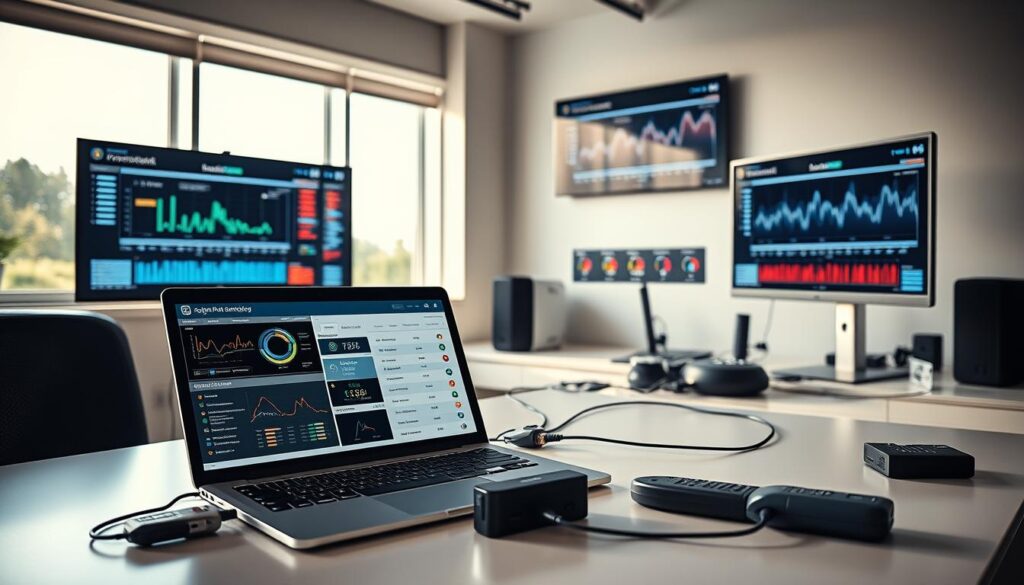
But software alone can’t always solve physical world problems. Enter the Netduma R3 Gaming Router – the Chuck Norris of connectivity devices. This isn’t your dad’s router; it’s a strategic command center for your digital life.
The Geo-Filter feature lets you choose servers like you’re drafting players for your fantasy football team. No more connecting to servers on the other side of the planet just because the algorithm says so. You’re in control now.
SmartBOOST is where the real magic happens. It automatically prioritizes your gaming traffic while everything else waits its turn. Your video calls get through while your roommate’s cat video downloads take the scenic route.
Here’s how these tools stack up against common lag scenarios:
| Tool Type | Best For | Key Feature | Lag Reduction Impact |
|---|---|---|---|
| Network Monitors | Identifying hidden bottlenecks | Real-time traffic analysis | High (diagnostic) |
| Gaming Routers | Real-time performance | Server selection control | Very High (preventive) |
| Quality Managers | VoIP and streaming | Packet priority management | Medium to High |
| Open Source Options | Budget-conscious users | Customizable alerts | Variable (skill-dependent) |
These tools represent the smart approach to network management. Why keep resetting your router like some digital Sisyphus when you can actually understand what’s happening? The right tools don’t just fix lag – they help you prevent it from happening in the first place.
Remember: good tools make good mechanics, and great tools make lag disappear before it can ruin your experience. Your network deserves better than guesswork – it deserves data-driven solutions.
Router Tweaks
Your router is like the bouncer at a club. It decides which data packets get in and which don’t. This important device deserves more attention.
Firmware updates are key. Your router’s software should be up-to-date. Updates fix security issues and boost performance. Regular updates can significantly reduce packet loss and make your connection faster.
Getting into your router’s admin panel is easy. Just type 192.168.1.1 or 192.168.0.1 into your browser. The default login is usually “admin/admin” or “admin/password”. It’s like finding a secret entrance.
Quality of Service (QoS) settings are fun. They let you control traffic flow. Suddenly your Zoom meeting matters more than your teenager’s TikTok addiction. Set QoS to prioritize video calls and gaming for better performance.
Choosing the right channel is important. Your Wi-Fi shouldn’t be crowded. Switch to channels 1, 6, or 11 for 2.4GHz for clearer signals.
Security settings are critical. Open networks slow you down. Use WPA3 encryption for better security.
Antenna placement is all about physics. Position antennas vertically for horizontal coverage or at angles for multi-floor coverage. Proper placement can dramatically improve signal strength and reduce packet loss.
Upgrade your router if it’s old. Newer models handle more devices and fight packet loss better. Your old router might be slowing you down.
Your router is the heart of your network, not just a piece of furniture. These tweaks turn it into a traffic manager. The performance boost will be huge, like flying first class.
Optimizing Settings
Your computer’s default settings are like factory presets on a luxury car. They work for most people, but we’re about to customize for maximum performance. This isn’t just tweaking; it’s surgical precision for your digital experience.
Let’s start with the obvious: in-game settings. Many players crank everything to ultra, then wonder why their ping looks like a heart rate monitor during a horror movie. Lower those graphics settings strategically. Shadows and reflections are the first to go – your competitive advantage matters more than seeing your character’s perfect reflection in a puddle.
Enable the network stats display in your game settings. This is your digital dashboard, showing real-time ping, packet loss, and other metrics. It’s like having a co-pilot constantly reporting your network vitals. Marvel Rivals and many modern games offer this feature – use it religiously.
Server selection is your secret weapon. Don’t let the game auto-choose; manually pick the server with the lowest ping. It’s the difference between playing on a neighborhood court versus across the country. Most games show server locations and approximate latency – choose wisely.
Now let’s talk about Windows’ so-called “helpful” features. TCP autotuning sounds great in theory, but sometimes Windows’ idea of helping is like a backseat driver giving terrible directions. Disabling this feature can actually reduce packet loss and stabilize your connection.
Here’s what to check in your system settings:
- Network buffer sizes – finding the Goldilocks zone
- Window scaling options – not too big, not too small
- Background data processes – the digital parasites
- Power management settings – performance over battery life
Background applications are the silent performance killers. That weather widget? The cloud sync service? The “helpful” updater that checks every five minutes? They’re all consuming resources and potentially affecting your network performance. It’s digital multitasking, and your game shouldn’t have to compete for attention.
For streaming, services like GeForce Now offer detailed optimization guides. Their recommendations often include specific buffer settings and network configurations that can significantly improve streaming quality.
Remember: optimization isn’t about maxing out every setting. It’s about finding the perfect balance between visual quality and buttery-smooth performance. Your ping is the heartbeat of your online experience – keep it steady, keep it low, and watch your performance soar.
The best part? Most of these changes are reversible. Experiment, test your ping, and find what works for your specific setup. Your perfect configuration is waiting to be discovered.
How to Contact Your ISP
Think of contacting your ISP like preparing for a diplomatic summit. The fate of your Netflix binge hangs in the balance. You’re not just making a complaint – you’re negotiating for better service.
First, gather your evidence like a digital detective. ISPs respond to data, not drama. Run speed tests during peak hours and document packet loss percentages. Screenshot everything – it’s your ammunition for the coming conversation.
Timestamps matter more than emotions. Note exactly when your streaming fix becomes a buffering nightmare. Was it Tuesday at 8 PM? Sunday during the big game? Specificity is your secret weapon against generic troubleshooting scripts.
Now for the actual call. Your opening statement shouldn’t be “my internet sucks.” Try this instead: “I’m experiencing 40% packet loss between 7-10 PM with consistent latency spikes affecting my streaming.” Suddenly, you’re not a complainer – you’re a technical expert they need to take seriously.
When the first-line support person offers to reboot your modem (again), politely request escalation. Remember: you’re not being difficult, you’re being thorough. Service Level Agreements exist for a reason – know yours before calling.
Sometimes you need the nuclear option: threatening to switch providers. But use this strategically. Research competitors’ offerings first. Actual leverage beats empty threats every time.
| Contact Method | Response Time | Effectiveness | Best For |
|---|---|---|---|
| Phone Support | 15-45 minutes | Medium | Immediate issues |
| Online Chat | 5-20 minutes | Low | Basic troubleshooting |
| Twitter Support | 1-4 hours | High | Public accountability |
| Technician Visit | 2-7 days | Very High | Physical line issues |
The technician visit represents your best chance for a real streaming fix. Prepare for it like a presidential debate. Have your evidence ready, demonstrate the problem live, and don’t let them leave until it’s resolved.
Remember: you’re paying for a service that should work. Your patience has limits, and your wallet has alternatives. Sometimes the best solution involves becoming your own advocate in the great digital marketplace.
Maintaining Smooth Streams
Your network is like a high-performance sports car. It needs regular tune-ups, not just emergency repairs. That occasional lag spike is your network asking for a check-up before it gets worse.
Know what ‘normal’ looks like for your connection. Is your ping under 20ms during peak hours? Does your streaming fix work well during Netflix binges? Tools like Wireshark or PingPlotter help turn problems into solutions.
Routine maintenance isn’t glamorous, but it’s necessary. Schedule weekly router reboots and update firmware often. Use tools like ExitLag to reduce high ping and stabilize gameplay.
This isn’t about chasing perfection; it’s about building resilient digital habits. Your network needs more attention than your least favorite relative. Keep it clean, monitored, and occasionally praised. This way, we’re not just fixing lag, we’re creating better digital lives where buffering is a thing of the past.