

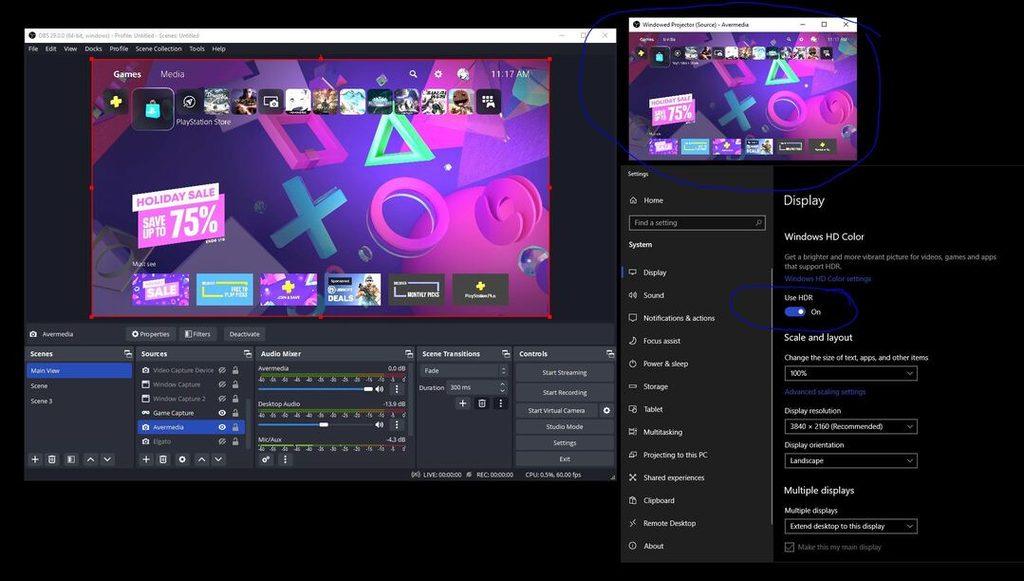
If HDR gameplay looks vibrant on your PlayStation 5 or gaming monitor but pale, gray, or unnaturally bright in OBS Studio, the problem may be a mismatch between HDR and SDR video handling. Before replacing a capture card or adjusting random color filters, identify whether the console, capture device, and OBS are interpreting the same signal correctly.
The most useful first test is to temporarily disable HDR at the source and make a short SDR recording. If the picture suddenly looks normal, investigate HDR-to-SDR conversion rather than internet speed, streaming bitrate, or GPU performance.
A capture card can successfully pass an HDR picture to your television while sending a different format to your computer. Understanding that difference can help you keep HDR gaming on your own screen while producing an SDR recording or livestream that looks natural to viewers.
Why HDR Gameplay Can Look Washed Out in OBS
High Dynamic Range (HDR) video can represent a wider range of brightness and color than Standard Dynamic Range (SDR). This allows compatible displays to show brighter highlights, deeper contrast, and richer color detail when the original content supports them.
The difficulty begins when an HDR signal enters an SDR production workflow.
OBS may be preparing a conventional SDR livestream while a console sends HDR video through a capture card. If the incoming signal is interpreted incorrectly or the required conversion does not happen properly, colors can appear faded, highlights may lose detail, and dark scenes can become unnaturally gray.
Converting HDR into SDR is called tone mapping. It compresses the wider HDR brightness range into one suitable for an SDR display. As Elgato’s explanation of HDR-to-SDR tone mapping explains, the process must balance highlight detail against shadow visibility. Some differences between the original HDR picture and its SDR version are unavoidable.
An SDR stream therefore should not be expected to look pixel-for-pixel identical to an HDR television. The goal is to preserve a convincing picture without obviously washed-out colors or crushed details.
Understand Where the HDR Signal Changes
A typical console streaming setup contains several connected devices:
Console → Capture Card → Television or Gaming Monitor
The capture card also sends video to the streaming computer, where OBS processes it for recording or broadcasting.
These paths can handle different video formats. An HDR image appearing correctly on the television does not establish that OBS is receiving properly converted SDR video.
There are three possibilities worth distinguishing:
- The capture card converts HDR to SDR internally. OBS receives an SDR signal and should process it accordingly.
- The capture card sends HDR data to OBS. OBS needs a supported HDR capture format and a suitable tone-mapping workflow when the final output is SDR.
- The capture device does not support the requested format. The problem may involve capture capabilities, drivers, or HDMI signal negotiation rather than tone mapping alone.
This is also why a capture card’s HDR passthrough specification should not be confused with its recording capabilities.
For example, Rave-Tech’s PS5 capture-card EDID troubleshooting guide explains how a card inserted between a console and a display can change the video modes available to the console. That article focuses on resolution and refresh-rate negotiation; HDR capture introduces an additional color-handling requirement.
Check Your PS5 HDR Settings Before Changing OBS
If you use a PlayStation 5, begin with the console itself.
Sony’s official PS5 HDR settings instructions describe the available options under Settings > Screen and Video > Video Output > HDR.
Two options matter particularly:
Always On converts games and applications that do not natively support HDR into an HDR output signal.
On When Supported allows content without HDR support to remain in SDR.
For many mixed-game streaming setups, On When Supported is a sensible option to evaluate because it avoids converting every non-HDR game into an HDR output.
To isolate the problem:
- Note your existing PS5 video settings.
- Temporarily switch HDR off.
- Record the same game scene in OBS with the other settings unchanged.
- Compare that local recording with the earlier result.
If SDR output appears normal while HDR output does not, the result points toward the HDR capture or conversion path. It does not establish which device is responsible.
If the picture remains washed out with HDR disabled, investigate other possibilities such as mismatched color range, source configuration, or display settings.
After testing, you can restore your preferred console HDR mode.
Check Whether Your Capture Card Converts HDR to SDR
Not every capture device handles HDR the same way.
Some capture cards have onboard tone-mapping hardware that converts an incoming HDR signal into SDR before the computer receives it. Others may support HDR passthrough but require software processing for conversion.
For example, Elgato identifies the HD60 X, 4K X, and 4K Pro among devices with onboard HDR-to-SDR tone-mapping capabilities. That does not mean every application receives the same format in every configuration. The actual video mode and available settings still need checking.
OBS maintains a list of capture devices tested for HDR support. Its documentation explains that receiving HDR directly from an external device requires support for a 10-bit video format such as P010, and its listed external-device HDR capture support is for Windows.
This distinction gives you two different troubleshooting paths.
If your capture card already sends correctly tone-mapped SDR, keep OBS configured to interpret that signal as SDR. Forcing HDR interpretation onto an SDR feed can create another mismatch.
If your capture device sends genuine HDR video, make sure its OBS source exposes a supported HDR format and color-space combination. On compatible configurations, options may include P010 and Rec. 2100 (PQ). Do not force these settings when the device is already outputting SDR or does not offer them.
Check the exact model’s current manufacturer documentation before changing advanced source properties.
Configure OBS for an SDR Livestream
Many gaming creators want to play locally in HDR while delivering a conventional SDR broadcast.
OBS introduced HDR processing and HDR-to-SDR tone mapping in version 28. Its official OBS Studio 28 release notes document that foundation, including the ability to convert HDR game content into SDR during composition.
For a standard SDR workflow, examine the Settings > Advanced > Video section in OBS Studio.
A typical SDR setup uses:
- Color Format: NV12
- Color Space: Rec. 709
- Color Range: Limited, for a conventional video workflow where the source and downstream settings are consistent
The exact available options can vary with the OBS version, operating system, and capture hardware. These values describe the intended SDR output; they do not mean every HDR capture source should be manually forced into an SDR input mode.
When OBS receives a properly identified HDR source, its color-management system can tone-map that content for an SDR canvas. The source’s actual format must still be correctly recognized.
If the image remains wrong, check whether a tone-mapping override or other source filter is affecting the picture. Avoid stacking several color-correction filters simply to disguise a format mismatch.
Rave-Tech’s earlier OBS Studio 32.2 update analysis discusses why combining HDR gameplay with SDR overlays and other sources can create additional color-management problems. For creators troubleshooting an existing stream, correcting the basic capture path should come before experimenting with more advanced HDR effects.
Don’t Confuse HDR Problems With Color-Range Problems
Not every washed-out picture is caused by HDR.
Digital video can also use different signal ranges, commonly called Full and Limited. If a source, capture card, or video player interprets those ranges incorrectly, blacks may appear gray or dark details may be crushed.
This can resemble an HDR conversion problem even when the original signal is SDR.
A useful diagnostic sequence is to determine whether the problem follows HDR being enabled.
If colors remain incorrect in SDR mode, check the capture card’s reported color range and the corresponding OBS source settings. Do not assume Full is automatically better than Limited.
The appropriate choice depends on how the incoming signal is encoded and interpreted. Matching the signal correctly is more important than choosing whichever setting initially looks more saturated.
Test the Entire Recording Path Before Going Live
A convincing OBS preview is useful, but a completed recording provides stronger evidence about what your viewers will receive.
Use the following procedure:
- Record a controlled sample. Capture a short scene with recognizable bright highlights, dark areas, and colorful objects.
- Check the television and OBS separately. Determine whether the problem affects the gaming display, the OBS preview, or both.
- Change one setting at a time. Start with the console’s HDR mode, then inspect the capture-card format, and finally examine OBS color configuration.
- Record another sample. Use the same game scene and compare the results.
- Inspect the file on an SDR display. This helps distinguish a genuinely poor SDR recording from a misleading preview on an HDR-configured monitor.
If the local recording looks correct but the live player does not, investigate the streaming service’s output requirements and playback behavior before changing capture hardware again.
Keep notes about which changes improved the result. This creates a reproducible diagnosis instead of a collection of settings that happened to make one scene look better.
When to Keep HDR and When to Use SDR
If your equipment properly handles HDR input, tone mapping, and SDR output, there is no general requirement to abandon HDR gaming.
You can continue enjoying HDR on your display while producing a correctly converted SDR stream.
However, using SDR at the console may be the simpler and more reliable workflow when the capture card lacks suitable HDR handling, the streaming computer cannot process the incoming format, or you are troubleshooting an important live production.
Creators deliberately producing HDR recordings or HDR livestreams need a different workflow involving compatible encoders, output settings, playback devices, and platform support.
The best fix is the one that corrects the signal, not merely the one that makes the preview look brighter. Verify what the console sends, what the capture card converts, and what OBS expects. Once those three parts agree, your livestream has a much better chance of preserving natural color without sacrificing your preferred gaming experience.